Flash – Moving Still Photos
I’ve decided to try and create an effect that I had seen before in documentaries programmes where still photos contain a moving image of a subject.
I used 2 old photos that I had taken from gigs many years ago, the first photo is of the band Travis and the second photo is of the band Ash.
I think moving still images works best with performance type of photos as it’s more dynamic and the movement makes the image come more alive. I carefully chosen photos that had a subject in front and a background that had some interest.
I began the piece by creating a layer mask in Photoshop to mask out the band members and putting them into a new layer that’s separate from the background.
Content Aware was used to roughly fill in the background layer hidden behind the band members as some of these area will be seen when the photos starts moving, I also used the healing brush and stamp tool to further clean up the background.
Click here to see the final separate images.

After getting the images all separated, I imported them into flash to create the moving animation. The animation could be done in any other software such as Premiere, Indesign or even Powerpoint.
The concept is to increase each image size of the separate parts and have them moving at an opposite direction to each other, making it look like the camera is moving.
I’m pleased with the final result, It does seem to bring static photos to life.
Photography – Miniature Effect Photos

Miniature Edinburgh Train

Miniature Edinburgh Building
Just for fun, I used a couple of old photos of Edinburgh that was taken last year to create a miniature effect look using Photoshop.
This was done in Quick Mask Mode with a Reflected Gradient to mark the area in focus and then used Lens Blur to make the background out of focus.
To finish it off I did some adjustment in the levels, colours and saturation to get a more artificial look.
Brochure – Visit Zhaoqing, China


Click here to view a high quality online pdf of the brochure.
Here is a sample work that I’ve created of a typical holiday tour guide brochure. It’s a 3-sided brochure layout; front and back. This was done in InDesign and took about 2 days to make.
I wanted to improve my knowledge of InDesign and decided to use my recent trip to China as the subject for a tour guide brochure.
All the photos used in the brochure were taken by myself during my trip to China, the image of the map was taken from Wikipedia.
As it’s a sample work, I decided to focus my time on the layout design of the brochure and didn’t spend much of my time on the written content; hence the use of dummy text.
I began with creating 3 columns for the text; with a transparent fill background to make it more readable. I then added the panoramic photos and placed it at the bottom of each page which instantly made the design more brochure looking.
I used a gradient for the upper part the background and several photos set in ‘lighten’ blending mode which added more visual interest and blended the upper and bottom images together.
The thumbnail photos were placed with a 2mm text wrap which gave it some space between the text and the photos.
I went for a 3-sided brochure layout but the final design could easily be adapted for a two-page spread layout. I’ve incorporated a 3mm bleed so it’s all setup ready for print.
I enjoyed making the brochure and I’m pleased with the final result, I hope it has made Zhaoqing an appealing place to visit!
Web – Gallery Slide
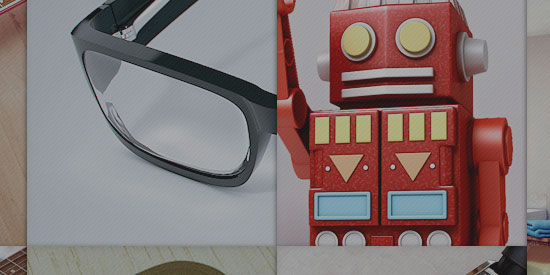
Here’s another gallery page that I’ve created. It’s done with HTML and CSS and took just a day to make. Although it looks complex in design, it’s rather simple in coding and uses mainly tables and transitions to get the final look.
I really enjoyed making this page and I’m amazed how simple and effective CSS can be at creating dynamic pages.
Web – Online Gallery

I’ve chosen to create a separate gallery page for this blog using HTML and CSS, it was previously just a page made on wordpress and it lacked some design and inspiration.
The new gallery has a better design and more interactivity using some of the new CSS3 features.
You can also access the online gallery using the sidebar on the right side of this page.